You are here: Configuring Locks > Create Lock Profiles
Creating Lock Profiles
This section covers the minimum steps to Creating a New Lock Profile, which must be done before you configure any Locks.
Also see: the LCT Guide for in-depth info beyond the scope of this help page.
(PDF links in the Page Footer open in your browser)
(PDF links in the Page Footer open in your browser)
INTRODUCTION TO LOCK PROGRAMMING
To begin, you must create a Lock Profile with the correct network settings of the DSR Server. Then you will connect each Lock to the LCT Tool and configure the specific Lock Settings and assign the Lock Profile to the lock. Once this set up is done, you can push the configuration to the locks individually.
Lock Profile is basically a configuration file that contains the common DSR Server settings that will be loaded to the Assa Locks. The Lock Profile ensures the assigned locks are all configured the same way. Locks that are assigned to the same Lock Profile will have the same DSR Server network security & connection settings, reader format, and alarm settings, etc.
Lock Profiles are used to support multiple DSR Servers. If a site has multiple DSR Servers, you need to make separate Lock Profiles for the group of locks that will connect to each Server. Lock profiles could also be separate for the case of having different lock alarm settings.
.
MATERIALS & INFO NEEDED
- LCT Tool software (installed on a PC that can reach each lock)
- Assa Serial USB Cable - to connect to the lock
- IP Address and Port# of DSR Server (Default Port # = 2571)
- Local Network Router /WiFi Router security settings
- Assa Lock's Reader Format - that the Lock Profile is created for (HID-Prox, HID-iClass, MagStripe, etc.)
- Desired Alarm Options - as appropriate.
NOTES & PREREQUISITES
- The DSR Solution can support more than one DSR Server.
- Lock Profiles to control which DSR Server your Locks will connect to.
- A lock can only be assigned to one Lock Profile.
- Make a new lock profile if Locks will use a different DSR Server, or have different reader formats, etc.
- You must create the Lock Profile before you can configure the Locks.
- The Lock Profile contains the network settings, reader format, and alarm settings that the assigned locks have in common.
- You can assign a Lock Profile to as many locks as is appropriate.
- You must save the Lock Profile file-name before you configure the profile settings.
- You must complete the Lock Profile configuration before you can assign any locks.
 CREATING A LOCK PROFILE
The steps below briefly cover the minimum requirements to create a new profile.
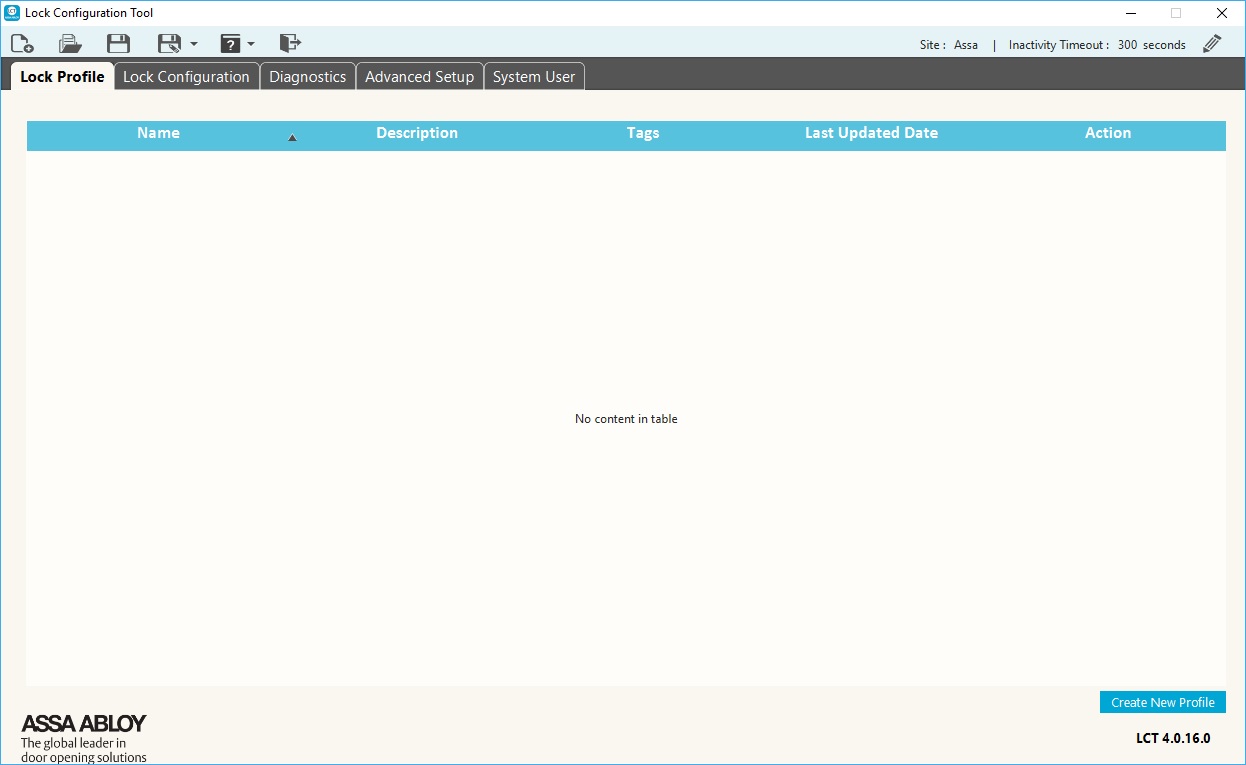
- Launch the LCT Tool and choose which option to take (either Create new profile or Open existing profile).
- Click the option to [Create +] option to make a new Lock Profile.
(otherwise click [Open] to use an existing file) - Select the Lock Profile tab.
- Select the Details tab.
- Enter a [Profile Name] in the field provided. You may want the Profile Name to reflect the use or purpose of the profile, or distinguish what kind of locks it serves. Follow Assa Best Practices for naming your profile.
TIP: It may be advisable to make a written record of your profile names, their purpose, and which locks they support. - Also enter a useful description for the profile.
- Set up the desired Lock Behavior for Power Outages (i.e. lock vs. unlock when power is out).
- Click [Save] button to create your Lock Profile (bottom right corner of screen).
- Enter a distinguishable file-name and save it to the proper folder.
Tap on thumbnail to see screenshot
NETWORK SETTINGS (for Lock Profile)
NOTES & PREREQUISITES
- You must know the DSR Server IP Address and Listening Port number (2571 = default port).
- You must know the Wifi Router settings if configuring Wifi Locks.
Configuring the Network Settings & Encryption Parameters
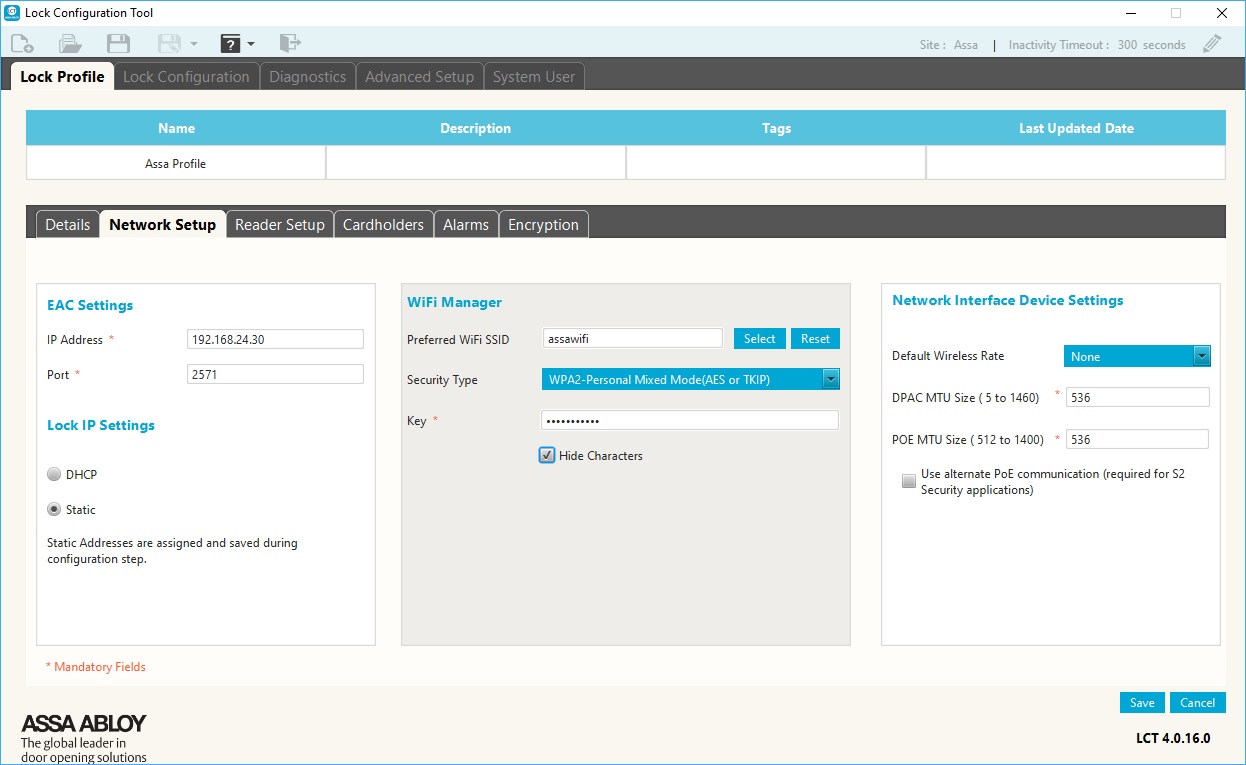
- Select the Network Setup tab - in LCT Lock Profile screen.
- Enter the DSR Server IP Address into the EAC Settings field.
- The default Listening Port for the locks is 2571. Change this only if the Customer/IT Administrator requires you to use another port.
- Enter an SSID in the [Preferred SSID] field for the Wifi Router.
- Select the appropriate Encryption Mode for the WIFI communication.
- Enter the appropriate value in the KEY field.
- Configure the Network Interface Device Settings as appropriate.
- Click the SAVE button to update your Lock Profile (bottom right corner of the screen).
Tap on thumbnail to see screenshot
READER SET UP (for Lock Profile)
NOTES & PREREQUISITES
- You must know the reader format of the Assa Readers that the Lock Profile will support.
Configuring the Reader Setup
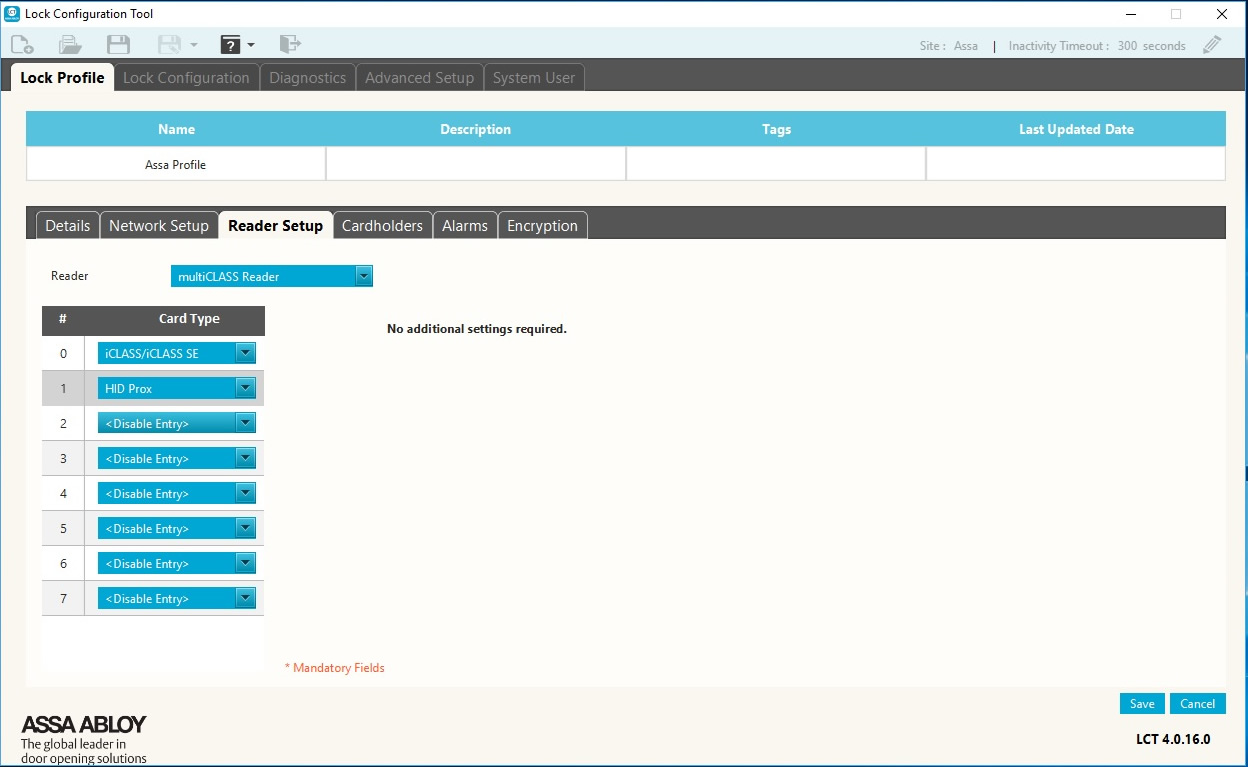
- Select the Reader Setup tab - in LCT Lock Profile screen.
- In the [Reader] droplist, select the Reader Type (e.g. Mulitclass, etc.)
- In the [Card Type] droplist, you must choose the appropriate Card Type that is selected at the reader. If you select multiclass reader, then you must set up as many Card Types as the reader accepts (e.g. proximity, HID-iClass, mag stripe, etc.).
- Click the SAVE button to update your Lock Profile (bottom right corner of the screen).
Tap on thumbnail to see screenshot
ALARM SETTINGS (for Lock Profile)
NOTES & PREREQUISITES
- Refer to the LCT Tool Guide for in-depth information about Alarm Settings.
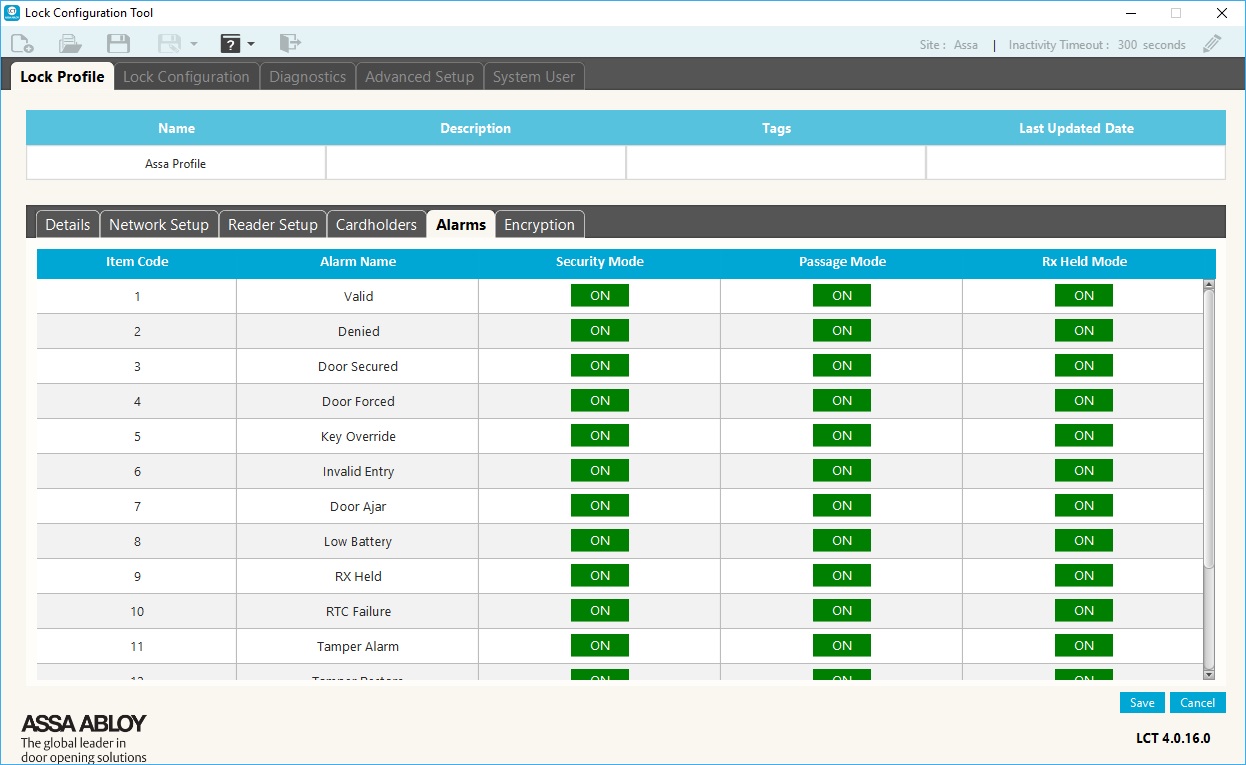
- If Alarms are disabled (OFF) in the reader, they will not be reported to System Galaxy.
Configuring Lock Alarms
- Select the [Lock Alarms] tab - in LCT Lock Profile screen
- Enable (turn ON) any Lock Alarms that apply to your installation scenario - as appropriate.
- Click [Save] button to update your Lock Profile (bottom right corner of the screen) .
Tap on thumbnail to see screenshot
Next Steps ...
When you have created your Lock Profile, you can advance to the Locks configuration .


